UPDATE: Forbes magazine article How To Check If Your Apple Watch Is Infected With Spyware.
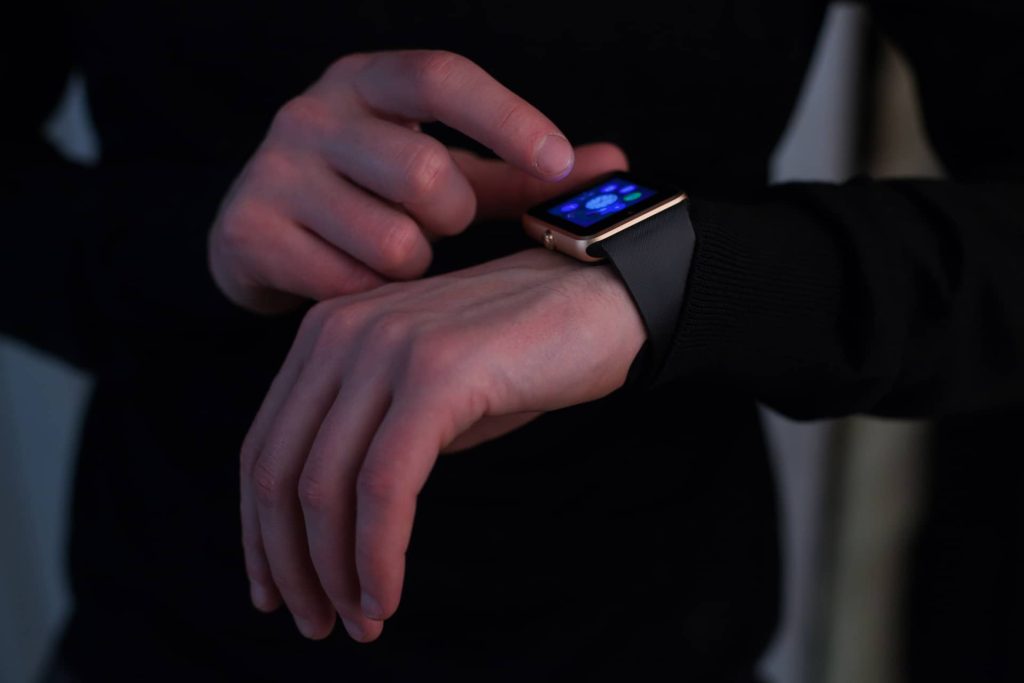
The Apple Watch’s built-in microphone, capable of capturing ambient audio and conversations, and its GPS sensor, which provides precise location data, make it a high-value target for advanced nation-state cyber actors. These capabilities underscore the unique security challenges posed by wearable devices. The recent watchOS 11.3 update, which patched security vulnerabilities, serves as a reminder that the Apple Watch is more than just a wearable—it’s a fully functional computing device with a sophisticated operating system. Like any other connected device, it carries inherent cybersecurity risks. For governments, organizations and individuals facing advanced persistent threats, securing every device—no matter how small—is essential to their security.
As no other Apple Watch security solutions exist, one of our government clients requested the ability to use our Standalone Analyzer product to also scan Apple Watch devices for malware and spyware. Standalone Analyzer is trusted by governments for unparalleled spyware detection capabilities for iOS and iPadOS devices and is the same suite of tools we use to analyze system diagnostic “sysdiagnose” submissions from our Am I Secure? app. With that nudge, we had the motivation to dive into this new frontier and also add the same capability to Am I Secure? and Am I Secure? for Work. Government-grade security analysis now extended to Apple Watch, building on our trusted expertise for iPhones.
Let us start by saying this upfront: we’re not losing sleep over spyware threats that only target an Apple Watch while leaving the victim’s iPhone untouched. The idea of attackers bypassing an iPhone—often a more attractive target—to exclusively exploit an Apple Watch seems highly improbable. In most cases, if an Apple Watch were compromised, it’s reasonable to assume the paired iPhone would also be affected. This makes our existing iPhone sysdiagnose scanning and unique analysis capabilities the best first line of defense. If an attack is detected on an iPhone, a victim should assume that all of their devices need a thorough assessment. Your Apple Watch might not be the first target, but if your iPhone is compromised, your Watch could follow.
Apple Watch Scanning: Where We Stand
While our iPhone scanning process benefits from a robust baseline developed by analyzing over 1 million sysdiagnose samples from over 50,000 unique devices, primarily from our Standalone Analyzer government clients, our Apple Watch baseline is still very limited. This means as submissions are scanned that we will have anomalies requiring manual review by our team to determine if they are benign or malicious. Our baseline for Apple Watch maturing and expanding will reduce the amount of manual review required and how timely the results can be. Our solution pairs cutting-edge automation with human intelligence for spyware and malware detection.
Here’s the current snapshot for Apple Watch:
- Samples collected: ~ 2,000.
- Unique devices: ~ 400 (primarily watchOS 11, small number of watchOS 10).
No Technical Support for Now
Apple Watch sysdiagnose scanning is more complicated and takes quite a few more steps than for iPhone. For this reason, we won’t be offering technical support for Apple Watch scanning just yet.
However, if you’re tech-savvy and enjoy experimenting, we encourage you to give it a try!
How to Generate an Apple Watch Sysdiagnose
Here’s a quick guide for those willing to explore:
- Install the Profile:
On the paired iPhone, download and install the logging profile from Apple at watchOS Sysdiagnose Profile. You do not need a paid Apple Developer Account, you can use your regular Apple Account (formerly called Apple ID) to sign-in. If Lockdown Mode is enabled you will have to temporarily turn it off on your iPhone to install the profile. You can enable Lockdown Mode again immediately after the profile is installed. - Trigger Sysdiagnose on Apple Watch:
Press the Digital Crown and side button simultaneously for 2 seconds until you feel a vibration, signaling sysdiagnose has started. - Wait for Completion:
Sysdiagnose takes longer on the Apple Watch—about 15 minutes instead of 10 minutes for iPhones. - Locate the File:
Once completed, the sysdiagnose file for your Apple Watch will appear in the same location on your paired iPhone as iPhone sysdiagnoses do but the file name will start with co-sysdiagnose_2025… This file contains both an iPhone and an Apple Watch sysdiagnose file. If you try to share the co-sysdiagnose_2025… file then Am I Secure? will not appear in the list of apps you can share it with.
Don’t forget, you can also use our shortcut to rapidly find sysdiagnose files. - Extract the Apple Watch sysdiagnose from the File:
Share co-sysdiagnose_2025… and select “Save to Files”, saving it locally to your device. Proceed to Apple’s Files app. In Files, tap the file and it will create a directory starting with co-sysdiagnose_2025…. Go inside that directory and you will find two sysdiagnose files, one for your iPhone and one for your Apple Watch (the smaller one). Apple Watch sysdiagnose files are typically substantially smaller than iPhone ones, less than 100 MB is normal. - Share the File:
Press and hold the file (tapping it will expand it into a directory on your device) and share it with our app and upload it as you would an iPhone one. Once uploaded, you can then delete the directory and the sysdiagnose file.
See? Simple as that! But wait, it gets better…the profile expires after 3 days and then needs to be reinstalled to continue generating sysdiagnose on Apple Watch.
Note: An Apple Watch submission will count as the one submission per day under your subscription. We highly recommend using most of your submissions for your iPhone, which is a lot easier to do anyway, and only occasionally for your Apple Watch. We are also only analyzing watchOS 10 and watchOS 11 samples and do not plan to add support for older versions.
Just like with our iPhone scans, any anomalies found are manually reviewed by one of our experts, typically within a few hours. If we confirm an issue upon review, we’ll update your scan results in the app and notify you via the email address you provided us via Sign in with Apple.
An Early Stage Feature
Apple Watch scanning is still in its early days, with a small baseline and experimental capabilities. As we collect more data and refine the process, we’ll continue improving this feature. For now, it’s an exciting addition for advanced users eager to explore new territory in device security.
Thanks for being part of this journey as we expand our mission to keep your devices secure!